

Microsoft Copilot is changing how teams work inside Microsoft 365. It can draft emails, summarize meetings, analyze documents, and surface insights that normally take employees hours to locate. It’s a powerful addition to Outlook, Teams, SharePoint, and OneDrive, and it has the potential to make day-to-day work noticeably smoother.
That potential depends on one key factor: how clean and secure your Microsoft 365 environment is before Copilot goes live.

Copilot relies entirely on the data already stored in your Microsoft 365 environment. It pulls information from the documents, messages, sites, and folders users have permission to access. When older permissions, unmanaged sharing links, or abandoned Teams channels are still active, Copilot may surface information that wasn’t meant to be broadly visible. Preparing your environment helps ensure only the right data is available to the right people.
A preflight security checkup prevents those surprises. It ensures your Microsoft 365 environment is structured, governed, and ready for AI-powered tools. Below is a practical, step-by-step guide your business can use before switching Copilot on.
Why a Security Checkup Matters Before Copilot
Most organizations assume their environment is fairly locked down. But daily work patterns tell a different story. Teams share files quickly to meet a deadline. Employees build new SharePoint sites without reviewing existing structures. A partner is granted access for a short project and then forgotten. It doesn’t take long for permissions to become tangled.
This goes largely unnoticed when employees depend on traditional search and their own memory to locate files. But AI brings a new layer of visibility. Copilot can summarize a document from a folder that a user forgot they had access to. It can pull insights from files that were shared broadly years ago. It can point out information that was technically accessible but practically hidden.
This checkup helps confirm that your environment is structured and secure before Copilot is introduced.
Step One: Review and Clean Up Permissions
The number one factor determining what Copilot can surface is permissions. If access is too broad or outdated, Copilot may bring the wrong information to the wrong person.
Identify Who Has Access to What
Start with the basics. Review access across:
- SharePoint sites
- OneDrive folders
- Teams channels
- Shared mailboxes
- Microsoft 365 groups
Common issues to look for include:
- Folders open to “Everyone” or “Everyone Except External Users”
- Employees who still have access to old team or project folders
- Large groups granted full access when they only needed limited visibility
- Shared mailboxes with unclear or outdated permissions
The goal is to make sure people only have access to what they truly need.

Remove Outdated or Unnecessary Privileges
Most organizations discover that people retain access long after they’ve moved roles. Old finance folders, legacy HR sites, or abandoned project libraries tend to accumulate access over time.
Removing stale permissions strengthens security and ensures Copilot doesn’t surface unnecessary or inappropriate information to users who should no longer see it.
Step Two: Evaluate Sharing and External Access
Sharing settings are another common source of risk. Over time, individuals share files for convenience, not long-term structure.
Internal Sharing Risks
Inside a busy organization, internal links get shared widely. Someone grabs a quick “Anyone in your organization” link because they’re in a hurry. Another team uses a broad share link instead of assigning the right permissions.
Once Copilot is enabled, these open links become part of the environment it can reference. That means old files, draft documents, or sensitive content might be more visible than you expect.
External Sharing Risks
External access requires an even closer look. Businesses regularly collaborate with:
- Accounting firms
- Legal partners
- Contract developers
- Marketing agencies
- Temporary vendors or contractors
These external users often gain access for a short-term project, but their accounts may stay active long after the work ends. Some may still be able to view SharePoint sites, folders, or Teams channels.
Copilot can surface insights from any file these accounts can technically access, even if no one has looked at the file in years.
What to Check
An effective review should include:
- Site-level sharing settings
- File and folder sharing histories
- External collaboration controls
- Active and inactive guest accounts
This step ensures only the right people, both inside and outside the organization, can see your data once Copilot starts working with it.
Step Three: Locate Sensitive and Regulated Data
As organizations store more information in the cloud, sensitive content often lands in places that were never intended to hold it. With AI tools, that data becomes easier to surface.
Why This Matters for Copilot
Copilot works by analyzing data across your Microsoft 365 environment. If sensitive information is misplaced or stored too broadly, Copilot might summarize content that was never meant to appear in day-to-day workflows.
This is especially important for organizations that handle:
- Customer data
- Employee records
- Financial information
- Client files
- Medical or patient data
- Intellectual property
What to Do
You don’t need advanced tools to start this step. Explore a few basic actions:
- Tag or classify sensitive data using Microsoft’s built-in labeling tools
- Review where regulated files live and who can access them
- Confirm that restricted content isn’t stored in open Teams channels or broadly accessible SharePoint sites
- Archive or secure older documents that contain sensitive information
The goal is not to hide data from Copilot. It’s to ensure the right people see the right information at the right time.
Step Four: Strengthen Authentication and Identity Controls
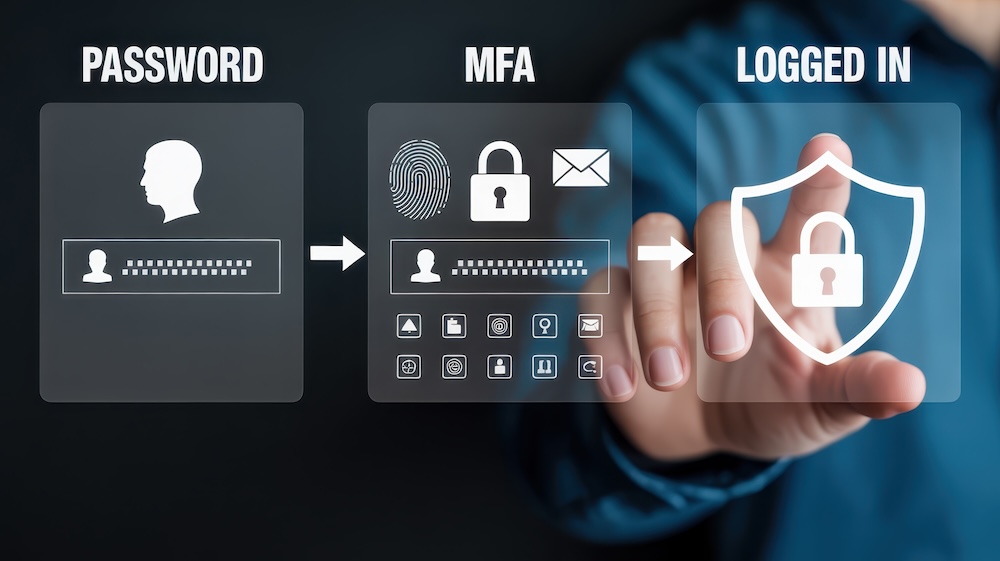
Even the most careful permissions review won’t help if identity isn’t secure. Strong authentication ensures that only verified users interact with your data and with Copilot.
What to Check
A reliable identity foundation includes:
- Multi-factor authentication for all users
- Conditional Access policies that limit riskier login activity
- Password rules that reduce weak or reused credentials
- Basic device compliance requirements for company laptops or mobile devices
If someone gains unauthorized access to a user account, Copilot becomes an entry point for sensitive information. Strong identity controls prevent that from happening.
Step Five: Clean Up Your Data Environment
Copilot performs best when it can navigate clear, organized data. A cleanup also helps your employees find information faster.
What to Assess
Look through your environment with a practical lens:
- Duplicate files across multiple locations
- Outdated documents no one uses anymore
- Abandoned Teams channels still holding old conversations and files
- SharePoint sites with unclear ownership
- Files with no defined purpose or context
Recommended Actions
This doesn’t need to be a major overhaul. A focused cleanup might include:
- Archiving older document libraries
- Consolidating duplicate content
- Removing clutter from Teams channels
- Setting clear ownership for long-running SharePoint sites
Cleaning up reduces confusion for both employees and Copilot.
Step Six: Review Core Microsoft 365 Security Settings
Microsoft 365 includes several built-in security controls that block common threats. These settings play an important role in creating a stable, secure environment for Copilot.
Key Configurations to Confirm
- Safe Links
- Safe Attachments
- Anti-phishing policies
- Defender for Office 365 settings
- Limited and well-defined admin roles
These settings don’t take long to review, and they form a strong baseline for any organization preparing for AI tools.
Step Seven: Establish Basic AI Governance Policies
Governance doesn’t need to be overly technical or restrictive. It simply provides clarity on how your team will use AI.
Topics to Cover
- Who will get access to Copilot first
- What types of data are approved for use with AI tools
- How employees should store content that Copilot will reference
- Approval processes for enabling new AI features
- Guidelines for correcting or validating AI-generated content
A simple policy helps everyone understand what safe, responsible use looks like.

Step Eight: Test Copilot in a Controlled Environment
A pilot phase is one of the most effective ways to prepare your environment and your team.
A Practical Pilot Structure
- Start with a small group of trusted users
- Provide training on how Copilot works
- Limit the pilot to known, well-organized data sources
- Monitor what Copilot surfaces during real work scenarios
- Document any unexpected access patterns or content exposure
This test run will give you a clear picture of how Copilot interacts with your data and where further adjustments may be needed.
Copilot Works Best in a Secure, Intentional Environment
Copilot has the potential to transform how your team works in Microsoft 365. It can help people find information faster, reduce manual tasks, and bring clarity to complex workloads. But its success depends on the strength of the environment it operates in.
By reviewing permissions, tightening sharing settings, securing sensitive data, strengthening identity controls, and cleaning up old content, you create a safe and structured foundation for AI. It’s a smart investment in both security and productivity.
If your business needs help understanding where to begin, a Microsoft 365 security assessment can reveal hidden gaps and give you a clear path forward. A well-prepared Microsoft 365 environment sets the stage for Copilot to work reliably.
About TSG
The Swenson Group (TSG) is an award-winning Bay Area Managed Service Provider that has helped thousands of organizations achieve more by leveraging cost effective technologies to be more productive, secure and cost effective. Services include Managed Print, Document Management, IT Services and VoIP. Products include MFPs, Copiers, Printers and Production Systems, Software and Solution Apps. For the latest industry trends and technology insights visit TSG’s main Blog page.